Thursday, April 26, 2018
What is new in SAP Enhancement package 8
SAP ERP 6.0 Enhancement Package 8 is, after EhP7, the next Enhancement Package following the concept of quarterly shipments. This Enhancement Package delivers innovations to our installed base ERP customers and can support them as a foundation for their conversion to S/4HANA.
Please Check this Link

Tuesday, April 24, 2018
Prune Data in Union Nodes in SAP HANA
Pruning data in union view nodes help optimize the query execution. You create a pruning configuration table, which specifies the filter conditions to limit the result set, and prune data using this table.
For pruning data in union view nodes, create a pruning configuration table that the tool must refer to, and define this table in the view properties
- Create configuration table as follows in HANA data base
CREATE COLUMN TABLE "HANADEV"."PRUNE_UNION" (
"SCHEMA" NVARCHAR(100),
"CALC_SCENARIO" NVARCHAR(100),
"INPUT" NVARCHAR(10),
"COLUMN" NVARCHAR(20),
"OPTION" NVARCHAR(10),
"LOW_VALUE" NVARCHAR(20),
"HIGH_VALUE" NVARCHAR(20) )
- create calculation view with union node as follows


- once created it, set created configuration table to hana calculation view. set Pruning Configuration table as "HANADEV"."PRUNE_UNION"
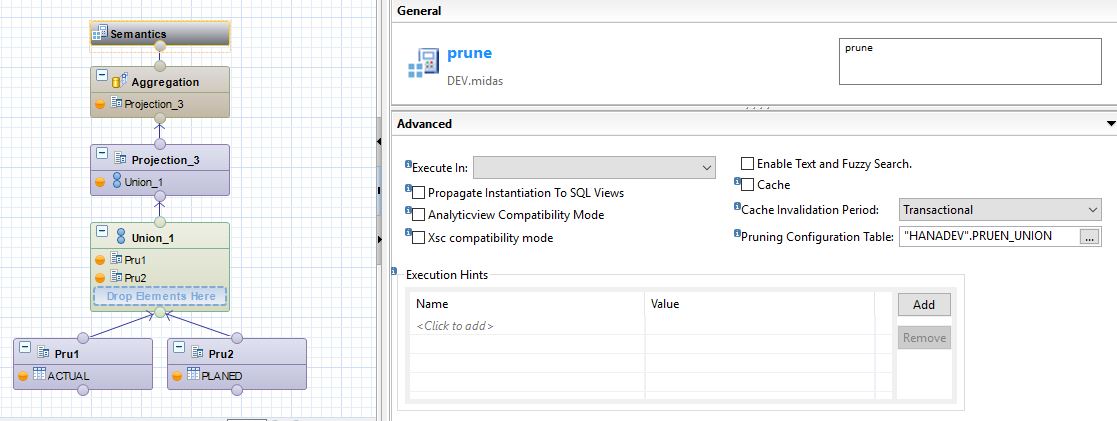
- now run Plan Viz

here you can see, only, the relevant record has been fetched from relevent Node
Monday, July 9, 2012
Code Blocks Not Allowed in SharePoint 2010
Recently been doing some quick prototyping some web-parts, regular aspx, and master pages in sharepoint and just been using inline code blocks. then i got an error message as follows
In order to work around this I had to edit the web.config as follows.
"An error occurred during the processing of /_Path. Code blocks are not allowed in this file."<SharePoint> <SafeMode MaxControls="200" CallStack="false" DirectFileDependencies="10" TotalFileDependencies="50" AllowPageLevelTrace="false"> <PageParserPaths> <PageParserPath VirtualPath="~/pages/*" CompilationMode="Always" AllowServerSideScript="true" /> </PageParserPaths> </SafeMode>Wednesday, May 30, 2012
Error on web service
have you encounterd an error as "The test form is only available for requests from the local machine" on web your services.
If so, simply open the web config file and add the following, you will be able to access the test form outside of the localhost:
<configuration>
<system.web>
<webServices>
<protocols>
<add name="HttpGet"/>
<add name="HttpPost"/>
</protocols>
</webServices>
</system.web>
</configuration>
that's it!!!! ;-)
<configuration>
<system.web>
<webServices>
<protocols>
<add name="HttpGet"/>
<add name="HttpPost"/>
</protocols>
</webServices>
</system.web>
</configuration>
that's it!!!! ;-)
Tuesday, May 8, 2012
Configuring Excel Services in SharePoint 2010
visit : http://mssharepointtips.com/tip.asp?id=1041 to see confiuration of Ecxell services
Wednesday, January 11, 2012
Deleting Duplicates comparing columns in SQL Server
Hi,
Today let's see how to remove Duplicates row comparing Particular Columns. Following would be the SQL code that facilitates you to get job done.
col 2, "Your Coloum 1
col 3, "Your Coloum 1
col 4, "Your Coloum 1
col n, "Your Coloum n
ROW_NUMBER() OVER
(
PARTITION BY [col 1(colum 1 that you need to delete duplicates )],
[col 2(colum 3 that you need to delete duplicates )],
[col n(colum n that you need to delete duplicates )],
ORDER BY [col 1],[ col 2] DESC or ASCS) AS RowCountNo
FROM [dbo].[Table]
) AS X
WHERE RowCountNo = 1
Thats all lol... :-)
Today let's see how to remove Duplicates row comparing Particular Columns. Following would be the SQL code that facilitates you to get job done.
SELECT *
FROM (
SELECT col 1, "Your Coloum 1col 2, "Your Coloum 1
col 3, "Your Coloum 1
col 4, "Your Coloum 1
ROW_NUMBER() OVER
(
PARTITION BY [col 1(colum 1 that you need to delete duplicates )],
[col 2(colum 3 that you need to delete duplicates )],
[col n(colum n that you need to delete duplicates )],
ORDER BY [col 1],[ col 2] DESC or ASCS) AS RowCountNo
FROM [dbo].[Table]
) AS X
WHERE RowCountNo = 1
Thats all lol... :-)
Wednesday, December 21, 2011
how to configure SharePoint 2010 Server Farm on your Windows 7
Today, I am going to show you how to configure SharePoint 2010 Server Farm on your Windows 7 64-bit Operating System. As you know, there are two method available for you to install SharePoint 2010.


1. Standalon
2. ServerFarm
- In any development environment, you should use a computer with an x64-capable CPU, and at least 2 gigabytes (GB) of RAM to install and run SharePoint Foundation; 4 GB of RAM is preferable. You should use a computer with 4 GB of RAM to install and run SharePoint Server; 6 GB to 8 GB of RAM is preferable.
- Using a text editor such as Notepad, open the installation configuration file, config.xml, Add this line inside the <configuration> tag
<Setting Id="AllowWindowsClientInstall" Value="True"/>
- If you are using Windows Vista Service Pack 1, Windows Vista Service Pack 2, or Windows 7, install the following additional prerequisites:
- Microsoft FilterPack 2.0.
- Chart Controls (this is not required if you are going to install SharePoint Foundation 2010).
- SQL Server Analysis Services - ADOMD.Net (this is not required if you are going to install SharePoint Foundation 2010).
- Manually enable each of the required Windows Features. (Just remove line break and open your cmd and past run)
start /w pkgmgr /iu:IIS-WebServerRole;IIS-WebServer;IIS-CommonHttpFeatures;^
IIS-StaticContent;IIS-DefaultDocument;IIS-DirectoryBrowsing;IIS-HttpErrors;^
IIS-ApplicationDevelopment;IIS-ASPNET;IIS-NetFxExtensibility;^
IIS-ISAPIExtensions;IIS-ISAPIFilter;IIS-HealthAndDiagnostics;^
IIS-HttpLogging;IIS-LoggingLibraries;IIS-RequestMonitor;IIS-HttpTracing;IIS-CustomLogging;IIS-ManagementScriptingTools;^
IIS-Security;IIS-BasicAuthentication;IIS-WindowsAuthentication;IIS-DigestAuthentication;^
IIS-RequestFiltering;IIS-Performance;IIS-HttpCompressionStatic;IIS-HttpCompressionDynamic;^
IIS-WebServerManagementTools;IIS-ManagementConsole;IIS-IIS6ManagementCompatibility;^
IIS-Metabase;IIS-WMICompatibility;WAS-WindowsActivationService;WAS-ProcessModel;^
WAS-NetFxEnvironment;WAS-ConfigurationAPI;WCF-HTTP-Activation;^
WCF-NonHTTP-Activation


- Restart your computer to complete the changes that you made to windows features.
- Now Run SharePoint 2010 set up exe. Accept the Microsoft License Terms. And you will encounter following depicted Screenshot.

- Select Server Farm and proceed with installation Step.
- After installing the setup, don’t configure SharePoint setup. Remove the tick and close the already appeared menu.
- Now, we have come to the most vital part of the process. Before that make sure Microsoft SQL 2008 R2 has been installed and configured properly.
- Now go to the Microsoft management shell 2010 and type Following Command
New-SPConfigurationDatabase
- Then, you are prompted to aske your Database Name , Database server, credintial and PassPhase. Give the detaile accordingly.

- Wait till Management Shell Configure its data base. If you come across with any error messages check your permission level or Prerequisite Software that you have installed. You should have full permission to your account, or you will end up with errors. So, make sure to set up your permission level properly.
- Now go to the SharePoint 2010 product configuration wizard and Configure the Web Application. :-{D
Subscribe to:
Posts (Atom)
SAP HANA Cloud Integration SAP : Part -01
What Is SAP HANA Cloud Integration? CPI-DS is a cloud-based data integration tool for batch & scheduled data integration between on-pr...

-
 Pruning data in union view nodes help optimize the query execution. You create a pruning configuration table, which specifies the fil...
 -
visit : http://mssharepointtips.com/tip.asp?id=1041 to see confiuration of Ecxell services
-
Hi, Today let's see how to remove Duplicates row comparing Particular Columns. Following would be the SQL code that facilitates you...